


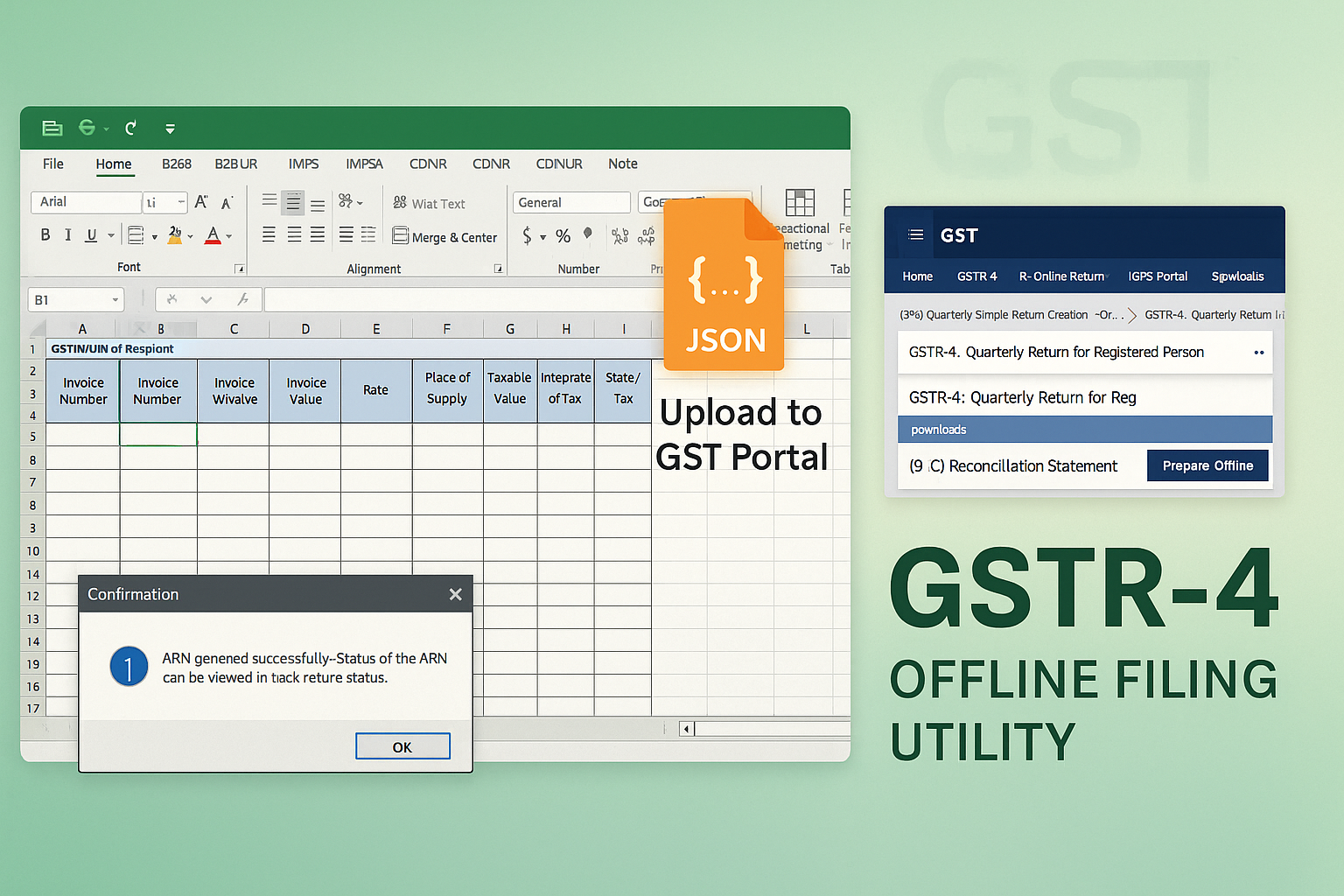
Filing FORM GSTR-4 using the Offline Utility
Edition: September 2025
Disclaimer: This manual is prepared for educational and compliance facilitation purposes. It does not substitute the provisions of law, notifications, or circulars issued by the Government. Readers are advised to refer to the original statutory provisions wherever required.
✍️ Preface
FORM GSTR-4 is the quarterly return for taxpayers registered under the Composition Scheme. It captures details of inward and outward supplies, tax liability, and payment. To facilitate easier filing, especially for small taxpayers with intermittent internet, GSTN provides the GSTR-4 Offline Utility, an Excel-based tool.
This manual consolidates the law framework, filing purpose, offline steps, FAQs with basis, and a checklist for practitioners and trade.
📑 Table of Contents
-
The Law Governing GSTR-4
-
Purpose of the Offline Utility
-
System Requirements
-
Step-by-Step Process (How Do I)
-
FAQs (with Basis)
-
Compliance Checklist (Fillable Format)
⚖️ 1. The Law Governing GSTR-4
-
Section 39, CGST Act, 2017 – Furnishing returns by specified persons.
-
Rule 62, CGST Rules, 2017 – Prescribes filing of GSTR-4 by composition taxpayers.
-
Notification No. 10/2017-CT (27.06.2017) – Introduced FORM GSTR-4.
-
Late Fee & Interest: Sec. 47 (late fee), Sec. 50 (interest).
📝 2. Purpose of the Offline Utility
-
To allow composition taxpayers to prepare and validate GSTR-4 details offline.
-
To ease bulk data entry for inward and outward supplies.
-
To enable filing with limited or intermittent internet.
-
To validate entries before upload, minimizing errors.
💻 3. System Requirements
-
OS: Windows 7 & above.
-
Software: MS Excel 2007+ or Open Office.
-
Disk Space: 200 MB free.
-
Internet: Required only for JSON upload/download.
🛠️ 4. How Do I – Stepwise Filing Process
Step 1: Download Utility
-
Visit www.gst.gov.in.
-
Navigate: Downloads > Offline Tools > GSTR-4 Offline Tool.
Step 2: Install & Launch Tool
-
Unzip file → open
GSTR4_Excel_Utility_v3.0.xls. -
Enable Editing & Content.
Step 3: Enter Return Details
-
Fill GSTIN, FY, Return Period.
-
Enter data in worksheets:
-
B2B, B2BA – Inward from registered suppliers.
-
B2BUR, B2BURA – Inward from unregistered suppliers.
-
IMPS, IMPSA – Import of services.
-
CDNR/CDNRA, CDNUR/CDNURA – Debit/Credit notes.
-
TXOS, TXOSA – Outward supplies (composition).
-
AT, ATA, ATADJ, ATADJA – Advances & adjustments.
-
Step 4: Validate Sheets
-
Use Validate Sheet button for each worksheet.
-
Correct errors flagged under “Validation Errors”.
-
Success = “Sheet successfully validated”.
Step 5: Generate JSON
-
Click Get Summary → check totals.
-
Click Generate JSON File to Upload → save file.
Step 6: Upload JSON on GST Portal
-
Login → Services > Returns > Returns Dashboard → select FY & period.
-
Click Prepare Offline → upload JSON.
-
Data appears in GSTR-4 tiles.
Step 7: Error Handling
-
If status = “Processed with Error”:
-
Download error JSON.
-
Open in Offline Tool → correct → re-validate → re-generate JSON → re-upload.
-
Step 8: Submit & File
-
On Portal: Preview → Offset liabilities → File with DSC/EVC.
-
ARN generated; acknowledgement available.
❓ 5. FAQs (with Basis)
Q1. Can GSTR-4 be filed fully offline?
No. Preparation offline, but filing must be done on GST Portal. (Rule 62, CGST Rules)
Q2. How to add/update/delete invoice records?
Use ACTION column in offline tool (ADD/DELETE). (GSTN Tool Specs)
Q3. Is validation mandatory?
Yes. JSON generated only after sheet validation. (GSTN Manual)
Q4. What if JSON upload errors?
Portal generates error file → open in tool → correct → re-upload. (GSTN Portal Workflow)
Q5. Can data be reset?
Yes, reset option available if return is in submitted state but not filed. (FAQ 6)
Q6. What sections are covered in worksheets?
B2B, B2BA, B2BUR, B2BURA, IMPS, IMPSA, CDNR/CDNRA, CDNUR/CDNURA, TXOS, TXOSA, AT/ATA, ATADJ/ATADJA. (Tool Specs)
Q7. Can Nil GSTR-4 be filed offline?
Yes, by leaving all fields blank and uploading JSON. (Rule 62, CGST Rules)
Q8. Is tool mobile-compatible?
No, only desktop supported. (FAQ 4)
Q9. How long does download/install take?
Approx. 2–3 minutes depending on internet. (Manual Note)
Q10. What happens after JSON upload?
Data flows to portal → preview → submit → file with DSC/EVC. (Portal Flow)
✅ 6. Compliance Checklist (Fillable Format)
| Step | Particulars | Status (✔) |
|---|---|---|
| 1 | Download GSTR-4 Offline Tool | ⬜ |
| 2 | Install & open (Enable Editing & Content) | ⬜ |
| 3 | Enter GSTIN, FY & Period | ⬜ |
| 4 | Fill details in relevant worksheets | ⬜ |
| 5 | Validate each worksheet | ⬜ |
| 6 | Generate JSON file | ⬜ |
| 7 | Upload JSON on GST Portal | ⬜ |
| 8 | Correct errors (if any) using error file | ⬜ |
| 9 | Preview return online | ⬜ |
| 10 | Submit & File with DSC/EVC | ⬜ |
| 11 | Save ARN & acknowledgement | ⬜ |

