


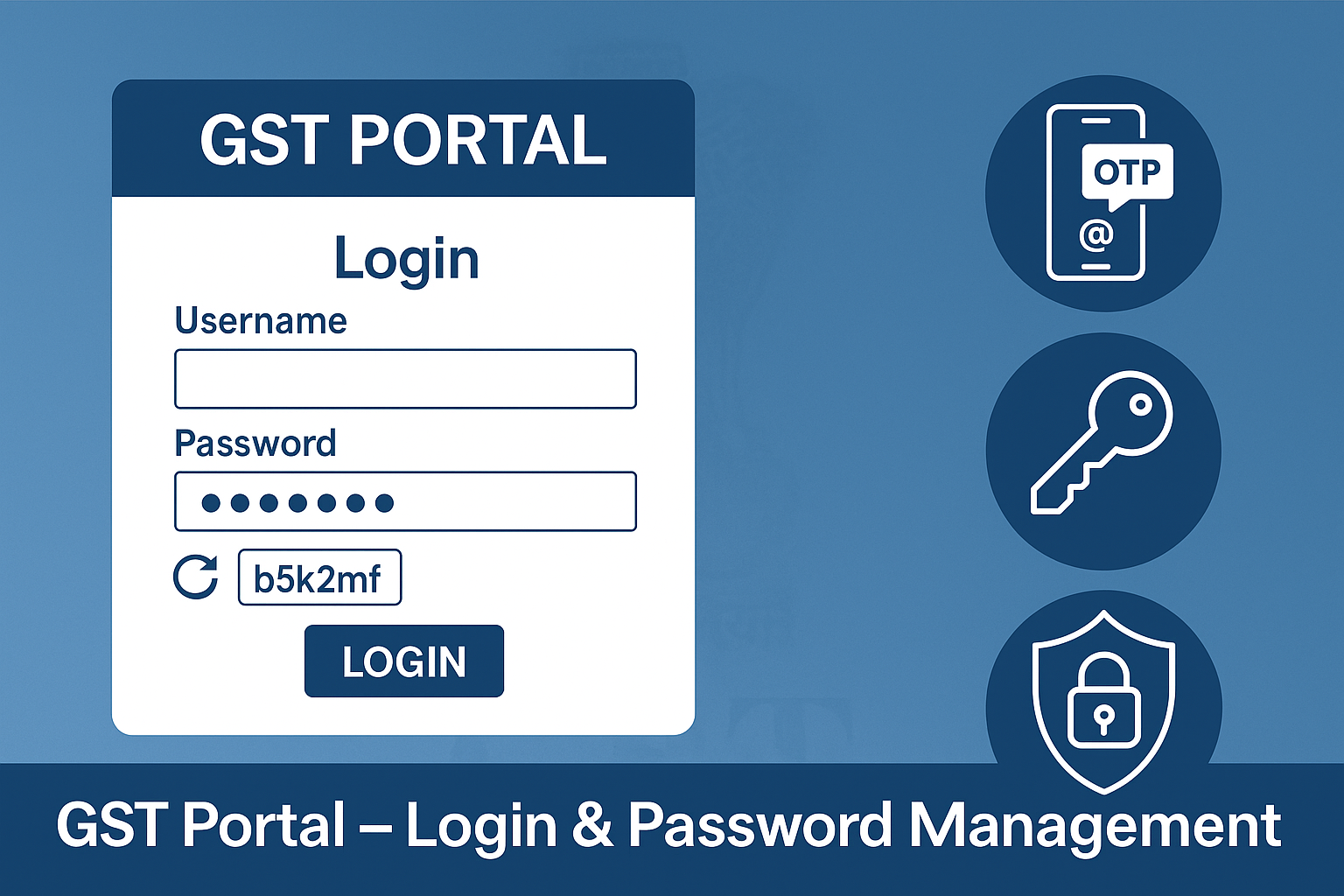
Logging in and Managing Username & Password on the GST Portal
Edition: September 2025
Disclaimer: This manual is for compliance facilitation. It does not substitute statutory provisions, notifications, or circulars. Taxpayers must verify with GST Act, Rules, and GSTN updates.
✍️ Preface
Every taxpayer registered under GST must access the GST Portal (www.gst.gov.in) for filing returns, registration amendments, and compliance activities. Secure login credentials (username, password, OTP verification) ensure safe access.
This manual consolidates the lawful provisions, portal process, FAQs with statutory basis, and a compliance checklist for practitioners and taxpayers.
📑 Table of Contents
-
Law Governing Login Security
-
First-Time Login Process
-
Subsequent Login & Two-Factor Authentication
-
Retrieving Username & Password
-
Changing Password
-
FAQs (with Basis)
-
Compliance Checklist (Fillable Format)
⚖️ 1. Law Governing Login Security
-
Section 146, CGST Act, 2017 – Common GST electronic portal for communication.
-
Rule 83(3), CGST Rules, 2017 – Mandates GSTP/taxpayer to maintain confidentiality of credentials.
-
GSTN IT Security Guidelines – Prescribes password strength and 2-step authentication.
🛠️ 2. First-Time Login Process
-
Visit www.gst.gov.in → Click Login.
-
Click First-time login – Click here.
-
Enter Provisional ID/GSTIN/UIN and password (received in welcome email).
-
Enter captcha → Click Login.
-
On New Credentials Page:
-
Set new username.
-
Set new password (8–15 characters, at least one number, one special character, one uppercase, and one lowercase).
-
Confirm and submit.
-
-
On first login, file a Non-Core Amendment Application to update Bank Account details (mandatory for normal taxpayers, optional for TDS/TCS).
🔐 3. Subsequent Login & Two-Factor Authentication
-
Enter Username, Password, Captcha.
-
OTP sent to registered email & mobile → enter OTP to authenticate.
-
OTP required when:
-
First-time login.
-
Login from a new device/browser.
-
Multiple logins in short duration.
-
Suspicious login attempts.
-
-
OTP not required on trusted devices.
🔄 4. Retrieving Username & Password
-
Forgot Username:
-
Click “Forgot Username” → Enter GSTIN/Provisional ID → Generate OTP → OTP sent to email/mobile → Username sent via email.
-
-
Forgot Password:
-
Click “Forgot Password” → Enter Username → Generate OTP → Enter OTP → Set new password (8–15 characters, rules as above).
-
🔁 5. Changing Password
-
Mandatory every 120 days.
-
Login → Dashboard → Change Password.
-
Enter old password → new password → confirm.
-
Password must differ from last 5 used.
❓ 6. FAQs (with Basis)
Q1. When is Welcome Kit received?
At registration; includes GSTIN & login credentials. (FAQ 1)
Q2. Why am I asked to file amendment after first login?
To update bank details; mandatory for normal taxpayers. (FAQ 4)
Q3. What are password rules?
8–15 characters, include number, special character, upper & lower case. (FAQ 3)
Q4. Why OTP for login?
For 2-step authentication to prevent fraud. (FAQ 3)
Q5. Do I always need OTP?
Not on trusted browsers/devices; required on new devices. (FAQ 4)
Q6. Can I login from abroad?
No, only from India. (FAQ 6)
Q7. Why am I not receiving OTP?
Due to network issues, untrusted login, or poor internet. (FAQ 7)
Q8. How long is password valid?
120 days. (FAQ 3, Subsequent Login)
Q9. What is Captcha?
Security code to prevent bots. (FAQ 4, Subsequent Login)
Q10. Can all taxpayers use EVC?
Yes, all categories can use EVC for forms and returns. (FAQ 6)
✅ 7. Compliance Checklist (Fillable Format)
| Step | Particulars | Status (✔) |
|---|---|---|
| 1 | Receive GSTIN & credentials in Welcome Kit | ⬜ |
| 2 | Login first time → reset Username & Password | ⬜ |
| 3 | File Non-Core Amendment to add Bank Account | ⬜ |
| 4 | Use OTP (2-step authentication) | ⬜ |
| 5 | Save trusted devices for seamless login | ⬜ |
| 6 | Retrieve Username via OTP if forgotten | ⬜ |
| 7 | Reset password via OTP if forgotten | ⬜ |
| 8 | Change password every 120 days | ⬜ |
| 9 | Use EVC/DSC for filings | ⬜ |
| 10 | Maintain credentials securely | ⬜ |

