Tracking Refund Status for IGST paid on Export of Goods & Accessing Export Ledger
Edition: September 2025
Disclaimer: This manual is for compliance facilitation. It does not substitute statutory provisions, notifications, or circulars. Taxpayers must verify with the CGST/SGST Acts, Rules, and GSTN updates.
✍️ Preface
Exporters who pay IGST on goods exported can track refund status and access the Export Ledger directly on the GST Portal. This ensures transparency on whether invoices have been transmitted to ICEGATE for refund processing. This report explains the law basis, portal process, FAQs, and compliance checklist.
⚖️ 1. Law Basis
-
Section 54, CGST Act, 2017 – Refund of tax.
-
Rule 96, CGST Rules, 2017 – Refund of IGST on export of goods.
-
Section 16, IGST Act, 2017 – Zero-rated supply.
🛠️ 2. Step-by-Step Process – Tracking Refund Status
-
Login to www.gst.gov.in.
-
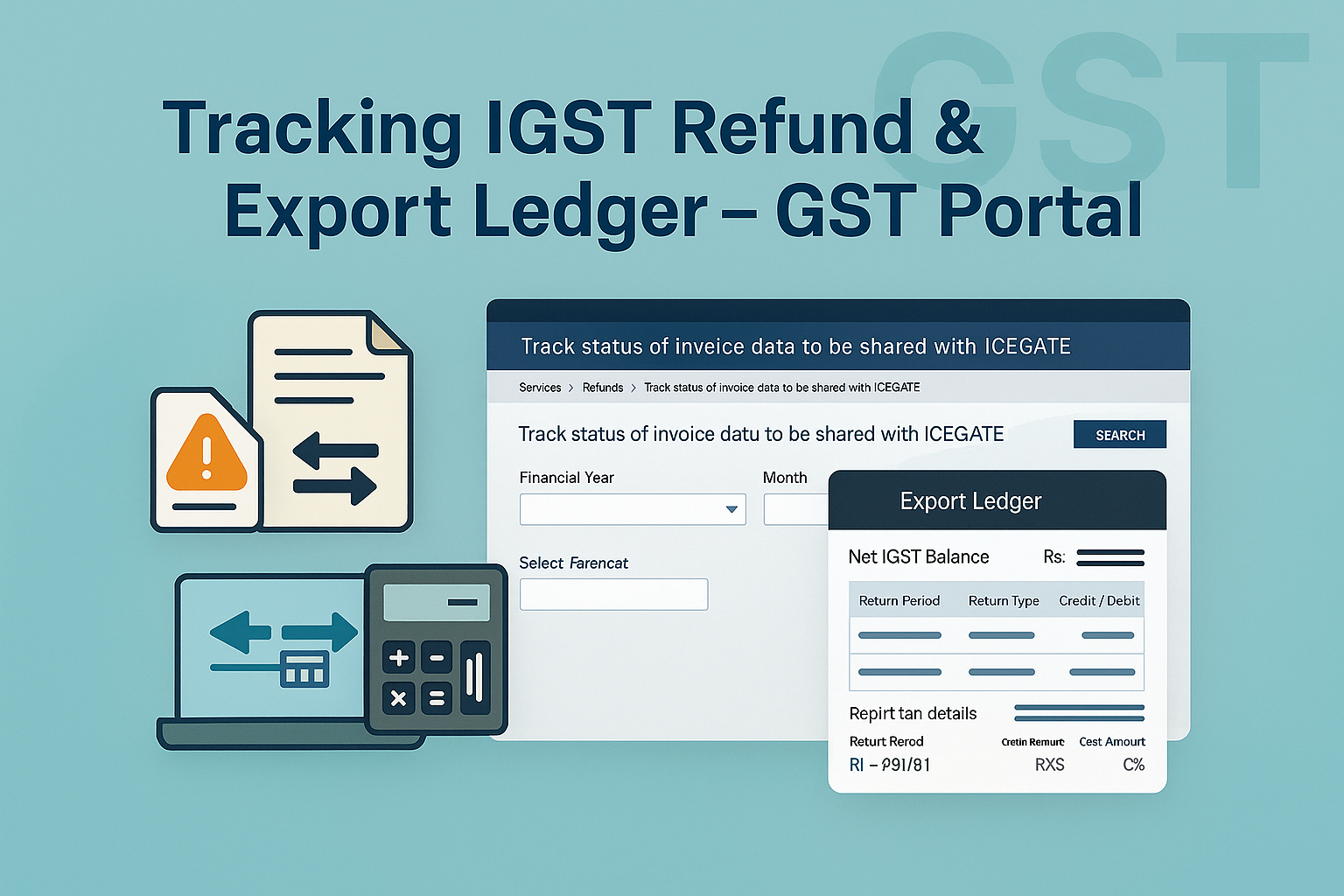
Navigate: Services > Refunds > Track status of invoice data to be shared with ICEGATE.
-
Select Financial Year and Month.
-
If filing GSTR-1 quarterly → Select last month of quarter.
-
-
Click SEARCH → Results displayed.
-
Click Count hyperlink → Invoice-level details shown.
-
Click Download Failed Invoices → Error details for non-transmitted invoices displayed.
🛠️ 3. Accessing Export Ledger
-
GST Portal uses ledger-based approach:
-
Compares IGST/Cess declared in GSTR-1 (Tables 6A/6B/9A) with IGST/Cess paid in GSTR-3B (Table 3.1(b)).
-
Only if IGST paid ≥ IGST from export invoices → Eligible invoices transmitted to ICEGATE.
-
-
Negative balance in Export Ledger = No invoices transmitted.
Steps to Access Ledger:
-
Login → Services > Refunds > Track status of invoice data to be shared with ICEGATE.
-
Click View Export Ledger.
-
Export Ledger popup displayed with return-period wise breakup.
-
Options to download:
-
Download as CSV – Export ledger summary.
-
Download Transaction as CSV – Transaction-wise breakup of R1 and R3B entries.
-
📌 4. Key Features
-
Refund data not transmitted if:
-
GSTR-1 not filed.
-
IGST paid in GSTR-3B less than export invoice IGST.
-
Shipping bill/port details missing or invalid.
-
-
ICEGATE may reject invoices → Correct via GSTR-1 amendments (Table 9A).
-
Export Ledger provides net balance, credits/debits, and return-wise breakup.
❓ 5. FAQs
Q1. Where can I track refund status for IGST exports?
Under Services > Refunds > Track status of invoice data to be shared with ICEGATE.
Q2. What if IGST paid in 3B < IGST in GSTR-1?
Refund data not transmitted → Correct in next GSTR-3B/1.
Q3. How do I correct rejected invoices?
Amend in GSTR-1 (Table 9A).
Q4. What is Export Ledger?
Ledger showing cumulative IGST from GSTR-1 vs IGST paid in GSTR-3B.
Q5. How to download ledger?
Use Download CSV or Download Transaction CSV options.
✅ 6. Compliance Checklist
| Step | Particulars | Status (✔) |
|---|---|---|
| 1 | Login → Track status of invoice data to be shared with ICEGATE | ⬜ |
| 2 | Select FY & Month → SEARCH | ⬜ |
| 3 | Review transmitted & failed invoices | ⬜ |
| 4 | Download failed invoice details | ⬜ |
| 5 | Amend/correct GSTR-1 invoices if required | ⬜ |
| 6 | Access Export Ledger → View balances | ⬜ |
| 7 | Download Export Ledger/Transaction CSV | ⬜ |