Make GST Payments via BHIM UPI (Pre & Post Login)
Edition: September 2025
Disclaimer: This manual is for compliance facilitation. It does not substitute statutory provisions, notifications, or circulars. Taxpayers must verify with the GST Act/Rules, CBIC instructions, and GSTN updates.
✍️ Preface
The GST Portal offers multiple e-payment modes for discharging GST liabilities. One of the most user-friendly methods is BHIM UPI, which enables instant digital payments using a Virtual Payment Address (VPA), UPI ID, or mobile-linked account. Taxpayers can use this mode both pre-login (through challan generation using GSTIN/Temp ID) and post-login (via dashboard).
This manual consolidates the law basis, eligibility, step-by-step process, system validations, FAQs with statutory basis, and a compliance checklist.
📑 Table of Contents
-
Law Basis for UPI Payments
-
Eligibility & Bank Coverage
-
Step-by-Step Process (Pre & Post Login)
-
System Validations & Receipts
-
FAQs (with Basis)
-
Compliance Checklist (Fillable Format)
⚖️ 1. Law Basis for UPI Payments
-
Section 49, CGST Act, 2017 – Payment of tax, interest, penalty, fee, or any other amount.
-
Rule 87, CGST Rules, 2017 – Electronic Cash Ledger and authorized bank payments.
-
GSTN Guidelines – Permit use of BHIM UPI for challan payments.
👥 2. Eligibility & Bank Coverage
-
Taxpayers holding an account in UPI-enabled banks.
-
Must have an active UPI ID (VPA) or mobile-linked account.
-
Transaction charges, if any, vary by bank and are shown before payment.
🛠️ 3. Step-by-Step Process (Pre & Post Login)
A. Pre-Login
-
Visit www.gst.gov.in → Services → Payments → Create Challan.
-
Enter GSTIN/Other ID/Temp ID → Select tax heads and amount.
-
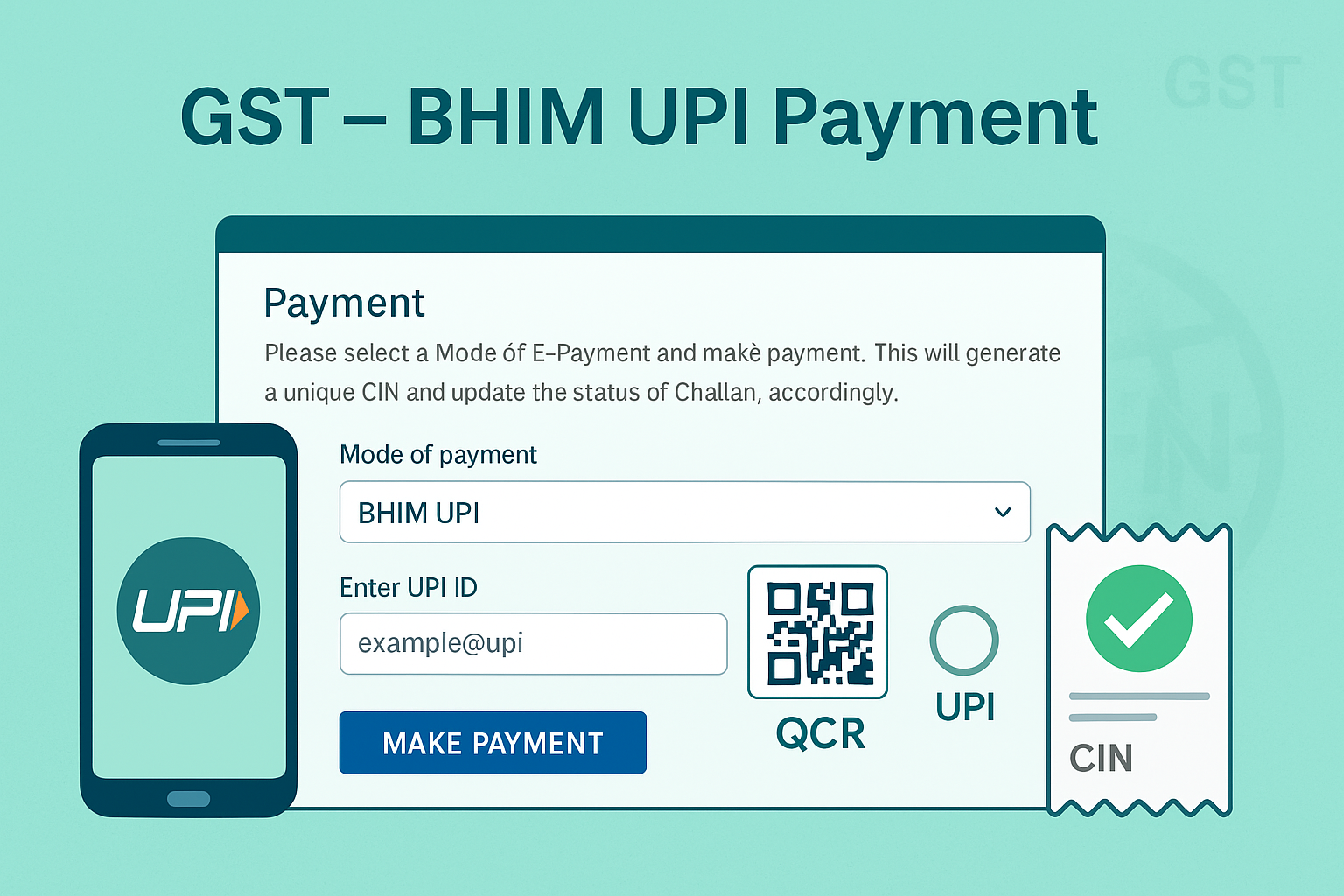
Choose Mode of E-Payment = BHIM UPI.
-
Enter UPI ID / mobile number → Tick Terms & Conditions → Click PROCEED.
-
Approve payment request on UPI app (e.g., BHIM, Google Pay, PhonePe).
-
On success, redirected back to GST Portal → Payment Success Message displayed.
B. Post-Login
-
Login to GST Portal.
-
Navigate: Services > Payments > Create Challan.
-
Follow same steps as above (3–6).
Receipts & Records:
-
CIN (Challan Identification Number) generated on success.
-
Payment reflected in Electronic Cash Ledger instantly.
-
Receipt downloadable under View Receipt link.
📌 4. System Validations & Receipts
-
UPI transaction subject to daily transaction limits as per bank/app.
-
GST Portal validates CIN and updates Cash Ledger in real-time.
-
Failed transactions (amount debited but no CIN) → auto-refund by bank within prescribed time.
❓ 5. FAQs (with Basis)
Q1. What are the online modes of GST payment?
Only Internet Banking and UPI are allowed. (FAQ 1)
Q2. What happens if GSTIN is correct but name mismatches?
No issue – credit is always based on GSTIN, not taxpayer name. (FAQ 2)
Q3. How are bank charges displayed for UPI?
Charges are shown before proceeding and link provided to bank’s page. (Manual)
Q4. Can I download receipt after UPI payment?
Yes, through View Receipt option, and Cash Ledger reflects immediately. (Manual)
✅ 6. Compliance Checklist (Fillable Format)
| Step | Particulars | Status (✔) |
|---|---|---|
| 1 | Go to GST Portal > Create Challan (Pre/Post login) | ⬜ |
| 2 | Enter GSTIN/Temp ID and challan details | ⬜ |
| 3 | Select Payment Mode = BHIM UPI | ⬜ |
| 4 | Enter UPI ID/Mobile → Accept Terms | ⬜ |
| 5 | Approve payment in UPI App | ⬜ |
| 6 | Return to GST Portal → Payment Success | ⬜ |
| 7 | Verify CIN generated & Ledger updated | ⬜ |
| 8 | Download/View Payment Receipt | ⬜ |